
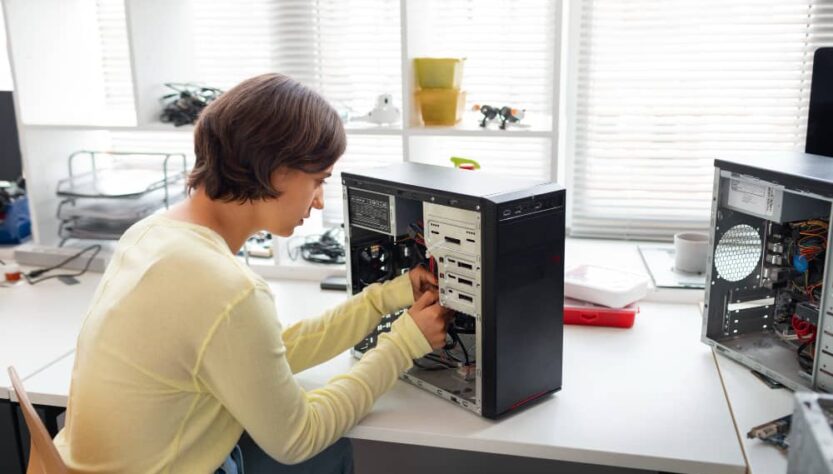
A home server can store and back up your files, stream media, run private applications, manage smart devices, protect your network, and provide an isolated environment for learning IT skills. You can build one from an old desktop, a compact mini PC, a NAS appliance, or even a spare laptop.
The best projects are not necessarily the most sophisticated ones. A useful server quietly solves a recurring problem, such as making family photos available on every device, backing up work files automatically, or running a development environment without consuming resources on your main computer. If you are wondering what to do with home server hardware, the projects below will help you match practical workloads to your available time, storage, and technical experience.
Key takeaways:
- A home server can centralize files, backups, media, applications, network services, and smart-home management.
- Beginners should start with one service that solves a real problem before adding containers, virtual machines, or public access.
- Low-power mini PCs suit lightweight services, while desktops are usually better for large storage arrays and hardware expansion.
- Self-hosting improves control and privacy, but you remain responsible for updates, security, monitoring, and recovery.
What to Do with a Home Server: 12 Practical Projects
1. Create Centralized Storage for the Entire Household
File storage is one of the simplest and most useful uses of home server equipment. Instead of keeping documents, photos, installers, and project files across several laptops, external drives, and phones, you can create one organized storage location available over the local network.
A basic Samba share works well for Windows, macOS, and Linux computers. Each household member can receive a private folder, while shared directories can hold scanned documents, family photos, music, or files used by several devices. Because transfers stay inside the local network, a wired Gigabit Ethernet connection can move large files without depending on internet upload speeds.
- Household documents and scanned records
- Shared photo and video libraries
- Work files accessed from several computers
- Software installers and device drivers
- Temporary transfer folders for large files
Centralized storage is convenient, but it is not automatically safe. A single server containing the only copy of every file merely creates a more organized single point of failure.
2. Automate Local and Off-Site Backups
A backup server can receive scheduled copies from laptops, desktops, phones, and other servers. Windows systems may use image-based backup software, while Linux and macOS machines can rely on tools built around rsync, BorgBackup, Restic, or similar technologies. Applications such as Duplicati can also encrypt selected directories and copy them to compatible cloud storage.
The strongest approach combines a fast local backup with a separate off-site copy. The local server makes everyday restoration quick, while an encrypted cloud destination or a second server protects against theft, fire, electrical damage, and failures affecting the entire home.
A mirrored disk protects service availability after one drive fails. It does not protect you from accidental deletion, ransomware, corrupted synchronization, or losing the entire machine.
Backups must also be tested. A successful job notification only confirms that data was written somewhere. It does not prove that the files, databases, encryption keys, and application settings can be restored correctly.
3. Build a Personal Media Streaming Platform
With Plex, Jellyfin, or Emby, a home server can organize a personal movie, television, music, and home-video library and deliver it to smart TVs, streaming boxes, browsers, tablets, and phones. The server stays available even when your main workstation is switched off.
Direct playback places little pressure on the processor. Transcoding is more demanding because the server must convert a video when the receiving device cannot handle its codec, resolution, bitrate, or subtitle format. Intel processors with supported integrated graphics are popular for this workload because hardware acceleration can process several common video formats more efficiently than CPU-only transcoding.
Storage planning matters just as much as processing power. A small SSD is suitable for the operating system, application database, and thumbnails, while larger HDDs are usually more economical for the media itself. For a complete deployment process, see this step-by-step home media server setup guide.
4. Host eBooks, Audiobooks, and Research Material
A server is not limited to video. Calibre can manage an eBook collection, metadata, covers, conversions, and connected reading devices. Calibre-Web adds a cleaner browser-based interface, allowing authorized users to search the library and download books remotely.
Audiobookshelf performs a similar role for audiobooks and podcasts. It tracks listening progress, supports multiple users, and prevents large audio collections from being scattered across phones and computers. Researchers can also store saved articles, technical documentation, PDFs, and reference material in a library that remains searchable from any authorized device.
5. Run Your Own Private Cloud and Collaboration Tools
Nextcloud can turn a home server into a private file synchronization platform with browser access, desktop clients, automatic phone uploads, shared calendars, contacts, notes, and expiring links. Adding Collabora Online or another compatible office suite enables browser-based document editing.
This arrangement offers more control over storage location, user accounts, quotas, and retention. It can also reduce dependence on separate commercial services. It does not reproduce the global redundancy or dedicated support team of a major cloud provider, so essential Nextcloud data still needs an independent backup.
Related self-hosted tools can cover additional needs:
- Joplin Server for synchronized notes
- Taiga for project and issue management
- GitLab for repositories and development workflows
- File Browser for lightweight browser-based file access
6. Protect and Manage Your Home Network
A dedicated server can provide DNS filtering through Pi-hole or AdGuard Home. Instead of installing a blocker on every browser, the server refuses DNS requests for many known advertising, tracking, telemetry, and malicious domains. This extends filtering to smart TVs, mobile applications, speakers, and IoT devices that do not support browser extensions.
More advanced users can run OPNsense or another firewall platform and allow the server to replace or supplement the consumer router. Possible services include:
- Firewall and network address translation
- DHCP and local DNS
- Private domain names for internal services
- Encrypted VPN access
- Parental filtering policies
- Traffic logging and anomaly detection
- Failover between primary internet and LTE connections
- Load balancing across two internet connections
Router replacement should not be a first project unless you understand how to recover from configuration errors. When the application server fails, one application becomes unavailable. When the main router fails, the whole household may lose internet access.
7. Centralize Smart-Home Automation and Camera Storage
Home Assistant can connect compatible lighting, heating, plugs, meters, sensors, alarms, speakers, and other smart devices through a single locally managed platform. Automations can continue working when an external vendor service becomes unavailable, provided the devices support local communication.
The same server can receive footage from security cameras or run network video recording software. Camera storage grows quickly, so retention periods, drive endurance, resolution, frame rate, and motion-triggered recording should be configured deliberately. Important footage may also require an encrypted off-site copy.
8. Self-Host a Password Manager and Private Communication Services
A self-hosted password manager can synchronize encrypted credentials between approved devices without keeping the primary database on a third-party server. Private chat, document sharing, and internal collaboration tools can also be hosted locally.
This category demands disciplined maintenance. Password databases, recovery codes, encryption keys, and authentication settings are high-value assets. Multi-factor authentication, restricted administration, tested backups, prompt patching, and secure remote connectivity are mandatory rather than optional enhancements.
For many non-technical users, a reputable hosted password manager remains safer than an unmaintained private instance. Self-hosting makes sense only when the administrator is willing to monitor and update it.
9. Build a Development, Linux, and Cybersecurity Lab
A home server provides an excellent place to run databases, APIs, test websites, build agents, Git repositories, monitoring systems, and isolated Linux machines. Proxmox can host separate virtual machines, while Docker can run lightweight application containers with fewer resources.
In my experience as a developer, the biggest advantage is repeatability. A Docker Compose file can describe an application, its database, persistent directories, network ports, environment variables, and restart rules, allowing the same environment to be rebuilt without relying on a long sequence of undocumented manual commands.
A practical lab might include:
- Ubuntu for learning Linux administration
- Kali Linux for authorized cybersecurity exercises
- GitLab for source control and CI workflows
- Temporary databases for application testing
- Local staging versions of websites
- PXE boot services for installing operating systems over the network
- Monitoring tools for logs, uptime, storage, and resource usage
Keep vulnerable practice machines isolated from trusted household devices. Cybersecurity tools should be used only on systems and networks you own or have explicit permission to test.
10. Host Multiplayer Games or a Remote Virtual PC
Dedicated servers are available for games such as Minecraft and many other multiplayer titles. Hosting locally gives you control over player access, world files, modifications, difficulty settings, backups, and update timing. Friends connecting over the internet will depend on your upload bandwidth and network configuration.
A stronger machine can also host a virtual desktop or provide remote gaming through compatible streaming software. Latency is usually low inside the local network, but performance over the internet depends on upstream bandwidth, encoding hardware, routing, and the remote connection.
11. Run Personal Productivity, Finance, and Information Tools
Small applications often provide more daily value than an elaborate virtualization cluster. Ghostfolio can track investments, an RSS reader can collect updates from selected websites, and lightweight dashboards can display household data without sending it to several external platforms.
A shared music service is another practical example. In a small office or workshop, a server connected to speakers can host a common library or playlist interface that authorized users can control. The project is technically modest, but it solves a visible problem and is likely to remain in use.
From my testing, services with a clear daily purpose survive much longer than experimental containers installed only because they appeared on a popular self-hosting list.
12. Host Websites, Internal Applications, or Specialist Services
A home server can publish a personal website, receive email for another system, run a small application, cache software updates, host a network controller, or execute scheduled scripts. It can also act as a private testing endpoint when a developer needs to make a prototype temporarily accessible.
Public hosting introduces additional requirements:
- HTTPS certificates and secure reverse proxy configuration
- Strong authentication and rate limiting
- Firewall rules with minimal exposed ports
- Reliable DNS and sufficient upload bandwidth
- Current operating system and application patches
- Logs, monitoring, and an incident recovery plan
Running a mail server from a residential connection is especially difficult because deliverability depends on IP reputation, reverse DNS, spam controls, and provider restrictions. For most households, using a hosted mail provider while self-hosting less sensitive applications is a more reliable compromise.
Which Home Server Projects Match Your Hardware?
| Project | Typical Hardware Demand | Main Requirement | Beginner Difficulty |
|---|---|---|---|
| DNS filtering | Very low | Reliable network connection | Low |
| File storage and backups | Low to moderate | Healthy drives and backup capacity | Low to moderate |
| Media streaming | Moderate to high | Storage and optional hardware transcoding | Moderate |
| Home automation | Low | Compatible radios, devices, and integrations | Moderate |
| Private cloud | Moderate | Memory, database performance, and backups | Moderate |
| Virtual machines and game servers | High | Multiple CPU cores and sufficient RAM | Moderate to high |
Should You Use a Mini PC, Desktop, Laptop, or NAS?
A mini PC is efficient, compact, and usually quiet. It is well suited to DNS filtering, home automation, private cloud applications, lightweight media streaming, Docker containers, and development tools. Its main limitation is storage expansion, as many models provide space for only one or two internal drives.
A desktop tower consumes more space and may draw more power, but standard memory, PCIe slots, replaceable cooling, SATA connectors, and multiple drive bays make it easier to upgrade. Anyone planning a large media library, several HDDs, virtualization, or a powerful game server should compare a mini PC with a desktop tower before buying hardware.
An unused laptop can be a sensible first server because it already includes a display, keyboard, low-power mobile processor, and battery. Restricted cooling, aging batteries, limited Ethernet connectivity, and poor storage expansion may become problems under continuous workloads.
A NAS appliance prioritizes storage management and ease of use. It typically offers dedicated drive bays, snapshots, polished administration tools, and vendor applications, although it may provide less software freedom than a general-purpose Linux server. A broader beginner’s guide to home servers can help clarify how these platforms differ.
Start Small and Remove Services You Do Not Use
The answer to “what can I do with a server at home” is technically broad, but your first deployment should be narrow. Choose one service that produces a measurable benefit, run it for several weeks, document it, back it up, and only then add another workload.
Unraid can be convenient for flexible storage and application management. TrueNAS suits storage-focused systems, while Ubuntu Server and Debian provide general Linux environments. Proxmox is excellent for virtualization, but it adds a management layer that may be unnecessary when a few Docker containers would solve the same problem.
Electricity use should be measured at the wall rather than estimated from the power supply label. A system averaging 20 watts consumes about 14.4 kWh over 30 days, while an 80-watt machine uses approximately 57.6 kWh. Multiply the result by your electricity tariff and compare it with the subscriptions or hardware the server replaces.
Do not self-host software solely to avoid a small monthly fee. Paid services can provide better mobile applications, support, redundancy, security teams, and simpler recovery. A server becomes worthwhile when control, local performance, privacy, learning, or storage economics outweigh the time needed to maintain it.
Containers that have not been used for weeks should be removed or disabled. Every active service creates another application to patch, monitor, back up, and protect, particularly when it is reachable from outside the home.

